Contents:
What does it mean to be a DSP Notetaker?
Notetakers upload the notes they are already taking for themselves to the MyDSP portal. There may be one or multiple DSP students enrolled in the course who receive these notes; students may choose to remain anonymous to their notetaker.
Notetakers receive a Letter of Verification of Volunteer Hours for providing notes.
Notetaker Expectations:
As a Notetaker, you are responsible for lecture notes only. You are not responsible for:
- class handouts
- discussion sections (unless specifically assigned, as indicated in your assignment)
- notes for readings, homework, or projects
Notes Format:
There is no required format. Upload the notes you’d normally take for yourself, as long as they’re legible (if handwritten), accurate, and thorough. Notes should include key verbal content from the instructor. If large portions of information, especially spoken material, are missing, the DSP student is not being provided with equal access to the lecture content.
PowerPoints without annotations or additional notes are not considered notes, especially if the PowerPoint is available to all students after lecture. If you upload annotated slides, make sure your notes are visible, legible, and clearly distinguished from the slide content.
Timeliness:
Notes should be uploaded as soon after the lecture as possible but no later than 24 hours after.
Absences:
If you miss class due to illness or emergency, upload a quick note informing your student(s). Do your best to obtain notes from a classmate, TA, or instructor and upload them to the MyDSP portal so that the DSP students' equal access to the lecture content is maintained.
Assignment Confirmation:
You will receive an automated email from DSPNotetaking@sa.ucsb.edu (same email address as notes@sa.ucsb.edu) if and only if you are assigned to a course as the designated volunteer notetaker. Due to the volume of requests we receive, we are unable to notify those who are not assigned.
When assigned for the first time, you must sign the Notetaker Agreement form that is linked in the confirmation email and upload notes within 2 lectures of your assignment date. You will be removed from the assignment, a new notetaker assigned, and your volunteer application closed out if this deadline isn't met, as we must minimize delay in students receiving notes.
For all subsequent assignments, this Assignment Confirmation email acts only as a notification to begin uploading notes and no other action is needed.
How to Request Courses
Step 1: Log into the MyDSP Notetaker Portal. In the main menu, to the left of Assigned Courses, navigate to Home. This text is blue letters with a white background in the upper left-hand corner.

(Visual Aid: A yellow arrow points to the "Home" button in the upper left corner of the image)
Step 2: Select Your Volunteer Courses
Locate the table under the "My Course Schedule" heading.
Find the column labeled "I would like to take notes for this course" (located between the "Instructor(s)" and "Status" columns).
Go down the row of your desired course (such as PSY W 1, MCDB 108A, or EEMB 131).
Select the checkbox in that row to volunteer your notes for that specific course.
Step 3: Submit Your Request
Scroll or navigate to the bottom right of the page section.
Select the button labeled "Submit Request(s)".
A confirmation pop-up will appear. Select "Submit" on the pop-up to finalize your request.
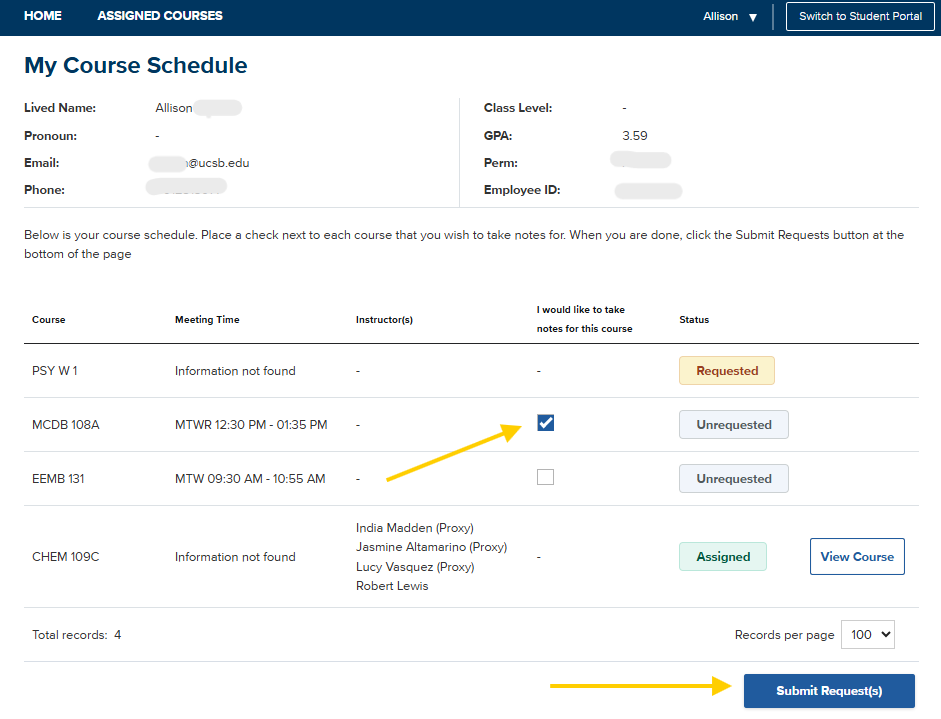
(Visual Aid: A yellow arrow points to a box that has been checked under "I would like to take notes for this course" for EEMB 131. Another arrow points to the "Submit Request Button" in the lower right-hand corner of the image.)
The right-hand column shows the Status of your course request. If unselected, the checkbox will remain available, and the status in the column to the right of the checkbox will say Unrequested. If requested, the checkbox is no longer available, and the status will change to Requested.
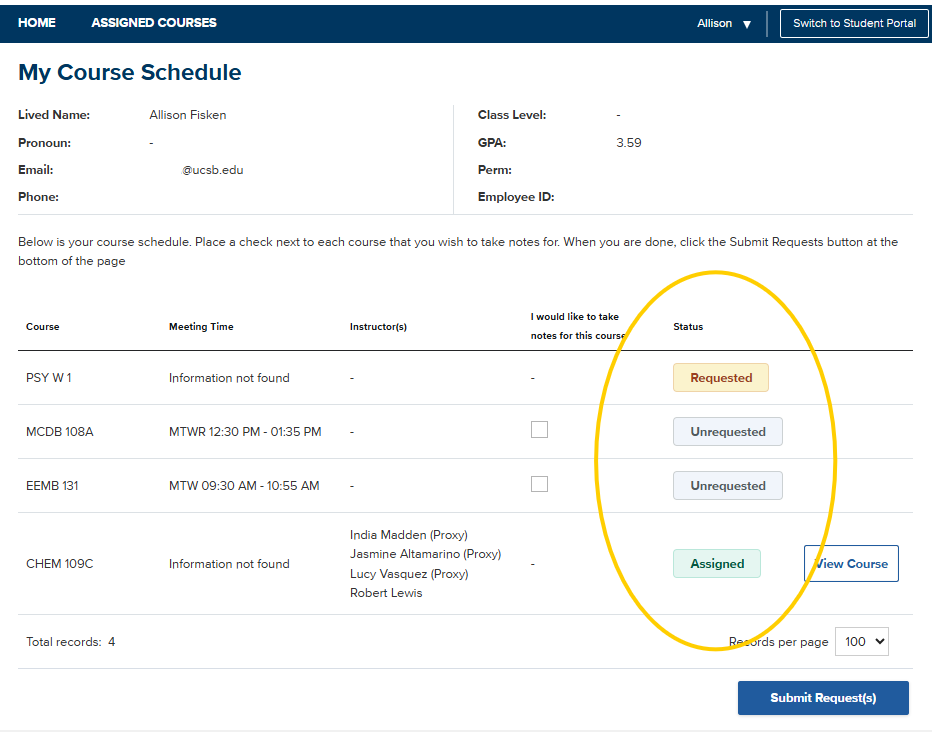
(Visual Aid: A large yellow circle highlights the "Status" column on the right side of the course schedule table, drawing immediate focus to the fields that show whether a course's note-taking status is marked as Requested, Unrequested, or Assigned.)
Uploading Notes
Step 1: Check Your Course Assignment Status
When you are selected as a note-taker, you will receive an automated email notification, and the course's status will update in your dashboard.
Navigate to the table under the "My Course Schedule" heading or go to the "Assigned Courses" page in the main top menu.
In the course list table, find the row for your course and check the "Status" column.
If you have been officially selected, the status will display the text "Assigned".
Select the button labeled "View Course" within that same course row to open your assignments and manage your notes.
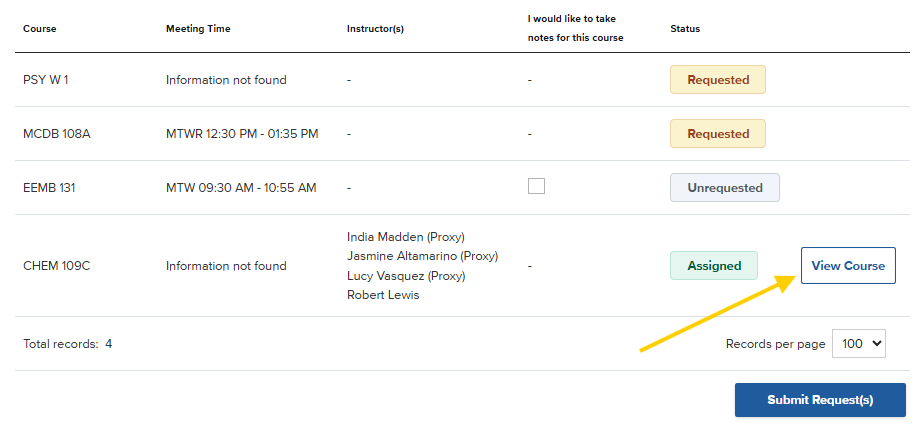
(Visual Aid: A yellow arrow points directly to the "View Course" button, to the right of a green "Assigned" button in the row for CHEM 109C)
On the Assigned Courses page, only the courses to which you are assigned will appear. Click on View Course in the far right-hand column to upload notes. The number of files already uploaded appears in the fourth column from the left, to the left of the View Course button under the column titled Total Files.
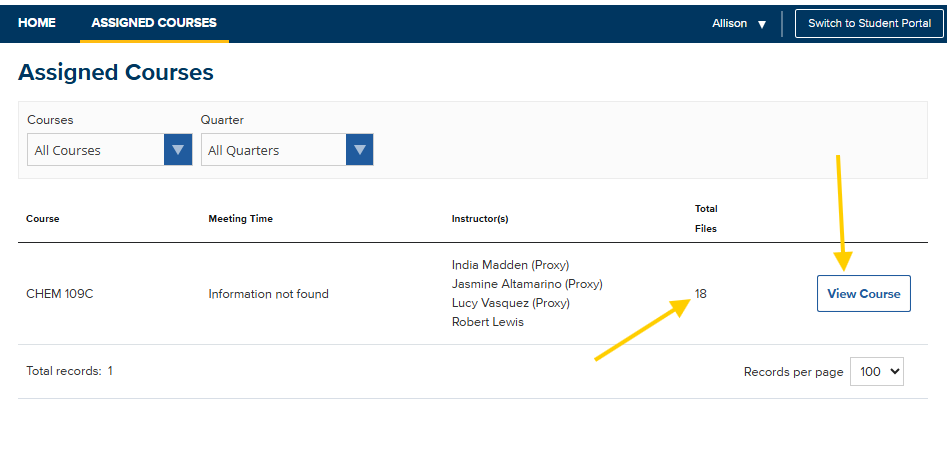
(Visual Aid: Two yellow arrows that point out key details in the "CHEM 109C" course row. The first arrow points diagonally upward to the number 18 under the "Total Files" column. The second arrow points straight down to the blue "View Course" button on the far right.)
Step 2: Under Upload New Notes, click the Choose Files button, then select a file from your computer to upload. Please use the following format for your file name: Course_Week #_Lecture #_Date of Lecture (e.g., SOC 126 Week 2 Lecture 4 4/22/26).
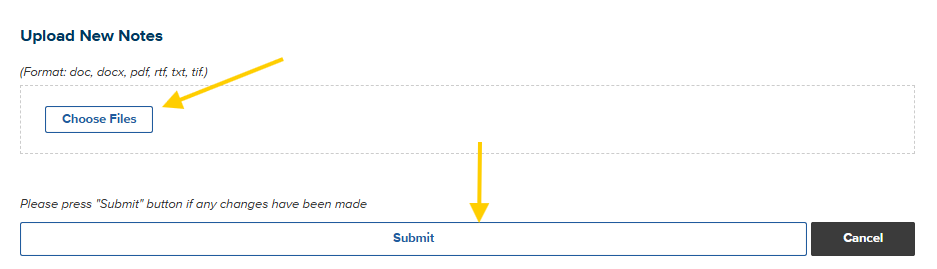
(Visual Aids: Two yellow arrows pointing out the essential actions in the upload form. The first arrow points diagonally downward to the blue-outlined "Choose Files" button inside the dashed upload box. The second arrow points vertically downward to the long, centered "Submit" button near the bottom of the interface.)
FAQs
Q: I applied to be a notetaker for my class, but I haven't heard anything back. How do I know if I've been assigned?
A: Due to the volume of volunteer requests we receive, we are only able to notify students who are assigned to one or more courses. You will not be notified if you are not assigned, but you will remain on our list of available notetakers in case a replacement is needed. We assign notetakers/replacements throughout the quarter, though this does slow down after midterms.
Q: I was just approved as a notetaker for my class, but it's the middle of the quarter. Do I need to provide notes for the lectures from before I was assigned?
A: Your status as a notetaker is not impacted if you do not upload notes prior to your assignment date. However, we kindly request that you upload any notes you have from prior to your assignment, even if they aren't up to the the standard you would normally set for yourself when providing your notes to others, as this can make a significant difference for the DSP students receiving the notes. Additional, volunteer hours are based on the number of weeks notes were uploaded and will be prorated accordingly.